
How to read a finding
A finding on Fix first tells you where to look, not what to blame. How to read its code, its file and line, and its times, and how to prove a fix worked.
On this page
A finding is a row on Fix first: a PB code, where it happened, how often, and the time involved. It tells you where to start looking. Before you change anything, open the request behind it, check what the times include, and treat the file and line as a lead.
Start with the code and the cost
Each finding carries a PB code, such as PB-2401 for a slow call to another service. The code's page says what it means and what usually fixes it. Then read the numbers:
- How often. Once in a week is a blip. Every request is a pattern.
- Total time. Fix first ranks by total cost, so a 50 ms problem on every page can sit above a 5-second problem that happened once.
- When. Check that it happened while the problem you are chasing happened, and not during a backup at 3 a.m.
Open the request
Click the request id to open it as a timeline: WordPress stages, hooks, queries, outside calls, emails and log messages, in the order they happened. The finding is one line in that story. The lines around it often explain it: a slow query that only runs after a particular plugin's hook, or an outside call that only happens when a cache has just expired.
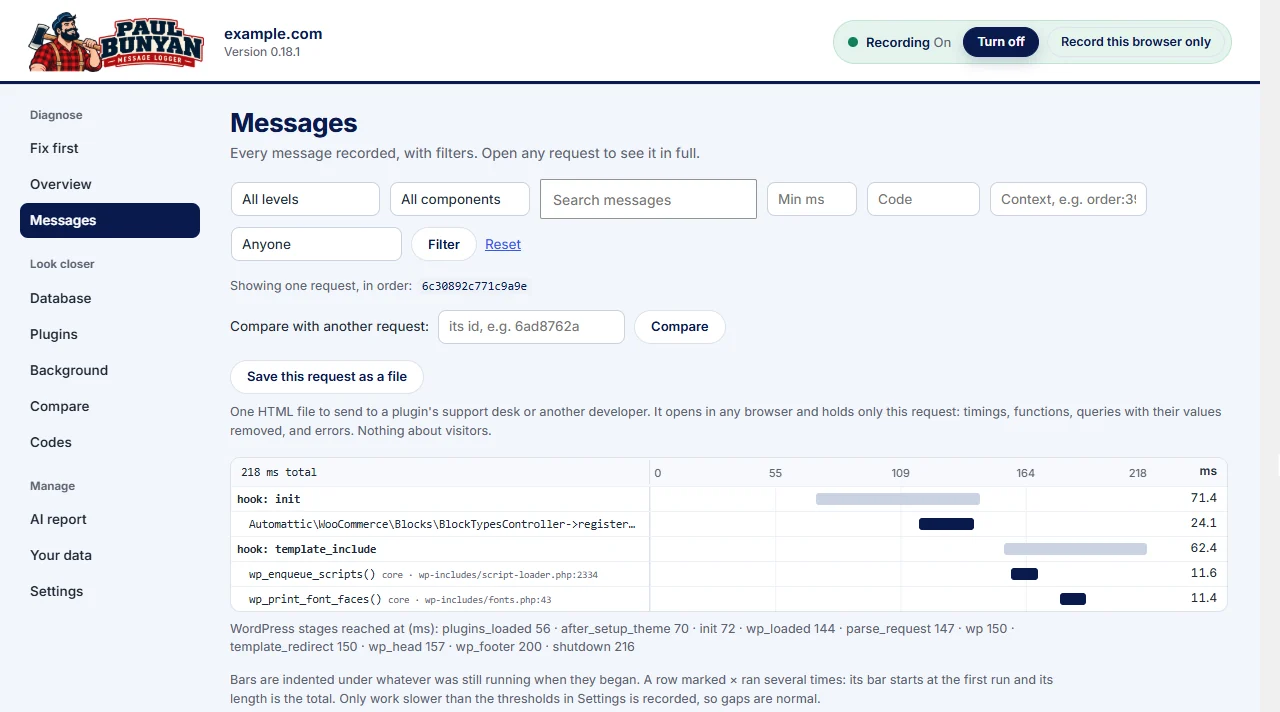
Read file and line as a lead, not a verdict
A finding names the file, line and plugin where the work happened. That is the place to start reading code. It is not always the place to fix it:
- A plugin can be slow because another plugin called it a thousand times.
- A plugin's function can be slow because it waits on a server you control.
- A PHP error is reported where it happened, and the bad data that caused it may have come from somewhere else.
The plugin named is the plugin doing the work. Whether that work is necessary is a separate question.
Do not add the times together
Times nest. A slow hook contains the functions attached to it; those functions contain their queries and outside calls. A hook taking 800 ms that contains a 700 ms outside call is one problem, not 1.5 seconds of problems.

The "Inside" line on a slow function shows how its time divides between queries, outside calls, email and other PHP.
Elapsed time against processor time
Elapsed time is how long the visitor waited. Processor time is how long PHP itself was working. A request with 3 seconds elapsed and 0.2 seconds of processor time spent most of its life waiting: on the database, another server, or email. A request with 3 seconds of both was busy computing. They point to different fixes, and only processor time counts against a host's CPU limit. See PB-2104.
Know what is outside the view
Paul Bunyan records PHP requests that WordPress runs. It cannot see:
- Pages served from a page cache. The cache answers before WordPress starts, so there is no PHP request to record. That is the cache doing its job.
- The browser's own work beyond the timings it reports: rendering, fonts, third-party scripts. Use the browser's developer tools for those.
- The server around WordPress: the web server, PHP workers queueing, the database server's own load.
If the visitor waited and Paul Bunyan shows a fast request, the time went somewhere on that list.
Prove the fix
Make one change, then repeat the same action under the same conditions: same page, same login state, same cache state. Compare the request before and after on the Compare screen. Then check that the feature still works. A checkout that is faster because it stopped sending the order email is not fixed.