
Which plugin is slowing down my WordPress site?
Find the slow WordPress plugin by measuring what each one costs per request, in place of switching them off one at a time. Three methods, compared.
On this page
To find the plugin slowing down a WordPress site, measure what each plugin costs on the server per request: time to load, time to run, database queries and calls to outside services. Switching plugins off one at a time also works, but it is slow, it disrupts a live site, and it does not tell you why the plugin is slow.
Why don't page speed tests show which plugin is slow?
Browser speed tests measure what the visitor's browser downloads and draws: images, scripts, fonts. They see your server as one number, the time to the first byte. Everything your plugins do in PHP and the database happens inside that one number, and the test cannot see into it.
Before you start: name the slow thing and measure it
"The site is slow" cannot be measured. Pick the exact action: the home page logged out, the Orders screen, saving a post, Place order. Note whether you are logged in and whether the page is cached, because a cached page skips the plugins entirely. Then time that action three or four times before changing anything. That baseline is what every change gets compared against, and repeating it stops one unlucky slow answer from deciding anything.
Three ways to find a slow plugin
| Method | How it works | What it costs you |
|---|---|---|
| Deactivate one at a time | Switch a plugin off, test, switch it back, repeat | Hours on a site with 30 plugins. Features break for real visitors while you test. Finds the plugin, not the reason. |
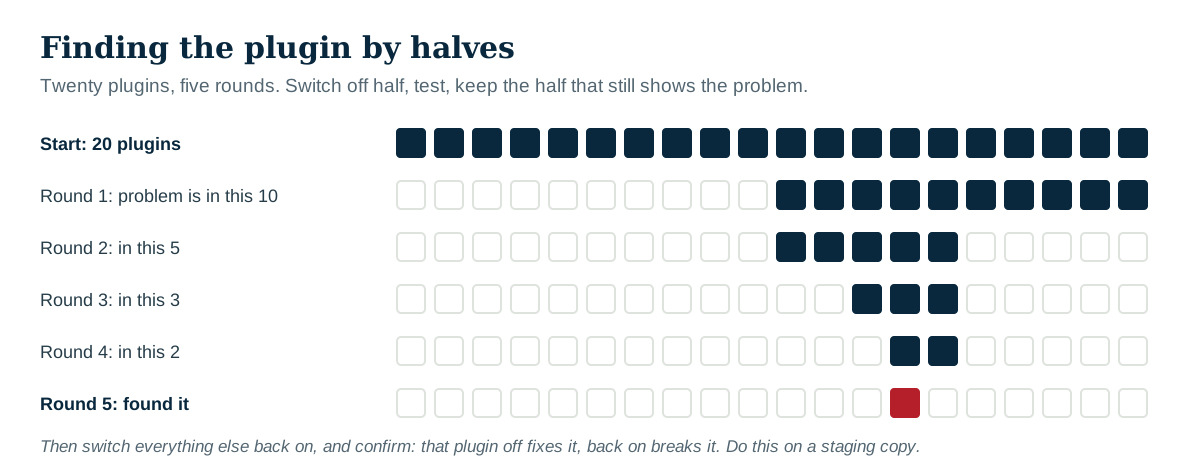
| Halve the list | Switch off half the plugins; if it is fast, the culprit is in that half; repeat | Four or five rounds for 20 plugins. Same disruption. Misses problems caused by two plugins together. |
| Measure per plugin | Record the time each plugin takes on real requests | Minutes. Nothing is switched off. Shows what the plugin was doing when it was slow. |
If you must switch plugins off, do it on a staging copy of the site, never on the live one.
Does the number of plugins matter?
Less than people think. Forty small plugins can cost less than one heavy one. What matters is what each plugin does on each request.
What makes a plugin slow?
- Loading. Every active plugin's code is loaded on every request, whether the page uses it or not. Large plugins cost time before they do anything.
- Database queries. A plugin that runs a slow query, or the same query 200 times, on every page.
- Calls to outside services. A license check, an update check or an API call that waits on another company's server. This is the usual cause of a slow dashboard.
- Scheduled jobs. Background work that starts during a visitor's page load.
- Autoloaded data. Settings a plugin tells WordPress to load on every request, sometimes megabytes of them.
Why is my dashboard slow when the site is fast?
Page caching hides slow plugins from visitors, because cached pages skip PHP entirely. The dashboard is never cached, so you feel every plugin there. The same is true of checkout, cart and account pages, and of anyone who is logged in.
I found the slow plugin. Now what?
- Update it. The problem may already be fixed.
- Check its settings for the feature doing the work, and turn that feature off if you do not use it.
- Send the author what you measured: which request, how long, which file and line. Authors fix problems they can see.
- Replace it if none of that works.
Make one change at a time, then repeat the baseline: same action, same login and cache state. Check the feature still works, too. A plugin that got faster because a feature quietly stopped working has not been fixed.
The plugin with the biggest number is not always the culprit. It may be doing necessary work, or waiting on a slow outside service, or being called a thousand times by another plugin. See How to read a finding.
How Paul Bunyan helps
Paul Bunyan's Plugins screen shows what every plugin and theme costs per request: loading, running, queries and memory, split by front end, dashboard, AJAX and scheduled jobs. Fix first ranks the worst offenders and names the file and line. Nothing has to be deactivated, and it measures real traffic, not a test page.
