
On this page
A plugin conflict is two pieces of code that each work alone but fail together: two plugins, or a plugin and the theme. To find one, write down exactly what breaks, capture the error before you change anything, then switch components off on a staging copy until the problem goes away and comes back on demand. The pair you are left with is the conflict.
Is it really a conflict?
Often it is not. Before you start switching plugins off, rule out the simpler causes:
- One plugin with a bug. If the problem stays with only that plugin and a default theme active, it is a bug in that plugin, not a conflict.
- A recent update. Most "sudden" conflicts start the day something updated. Check what changed: plugins, the theme, WordPress, or the PHP version at the host.
- The PHP version. Old plugins break on newer PHP. The error names a function or syntax the newer version no longer accepts.
- Something outside WordPress. A firewall, a CDN rule or a security setting at the host can block a request and look exactly like a conflict.
Step 1: Describe the failure exactly
"The site is broken" cannot be tested. "Checkout fails with a red error after choosing local pickup, logged out, on Safari" can. Write down:
- the exact action, page and button
- logged in or out, and which user role
- what you expected, and what happened instead
- whether it happens every time or only sometimes
A problem that happens only sometimes usually depends on something you have not written down yet: a product, a payment method, a cache, a time of day.
Step 2: Capture the evidence before you change anything
Switching plugins off destroys the evidence. First reproduce the problem once and save what it leaves behind:
- The PHP error. A fatal error names the file and line where PHP stopped. If you see "There has been a critical error on this website", WordPress also emails the site admin a recovery link and the error details. See There has been a critical error on this website.
- The debug log. Turn on debug logging and reproduce the problem. See How to enable WordPress debug mode.
- The browser console. Many conflicts are JavaScript: two plugins load different versions of the same script, or one script throws an error and stops the rest. Open the browser's developer tools, reproduce the problem, and copy the red errors from the Console tab.
The file named in an error is where the failure showed up, not always where it started. A plugin can pass bad data to another plugin, and the second one is the one that crashes. Treat the file as the first lead, not the verdict.
Step 3: Work on a copy
Never test conflicts on a live store or membership site. Switching off a payment, membership or security plugin for even a minute can lose orders or expose content. Most hosts offer a one-click staging copy. If yours does not, WordPress's own Health Check & Troubleshooting plugin has a troubleshooting mode that switches plugins off for your login only, while visitors still see the normal site.
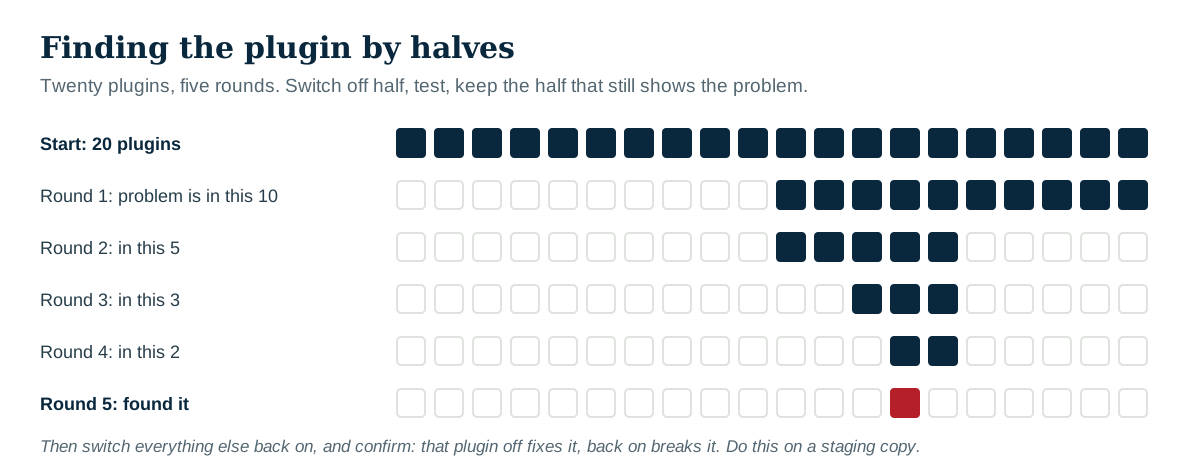
Step 4: Narrow it down by halves
- Switch to a default WordPress theme. If the problem goes away, the theme is involved.
- Switch off half the plugins, keeping any the failing feature needs (WooCommerce for a checkout problem, for example).
- If the problem goes away, the cause is in the half you switched off. If it stays, it is in the half still on.
- Repeat with the guilty half until one plugin is left.
- Switch everything else back on and confirm that switching that one plugin off fixes it, and switching it back on breaks it again.
Twenty plugins take about five rounds.
Do not forget must-use plugins (in wp-content/mu-plugins) and drop-ins such as object-cache.php: they do not appear on the normal Plugins screen and cannot be switched off from it.
Step 5: Confirm the fix
When you change a setting, update a plugin or replace one, repeat the exact failing action from step 1. Then test the things next to it: if you fixed checkout, place an order with each payment method and check the order emails arrive. A fix that removes the error but stops the confirmation email is not a fix.
Step 6: Send the author a report they can use
Plugin authors fix what they can reproduce. Send:
- the exact steps from step 1
- the two components that conflict, with their version numbers
- WordPress and PHP versions
- the error message, file and line, and any browser console errors
- what you already tried
Remove passwords, API keys and customer details before posting anything in a public support forum.
How Paul Bunyan helps
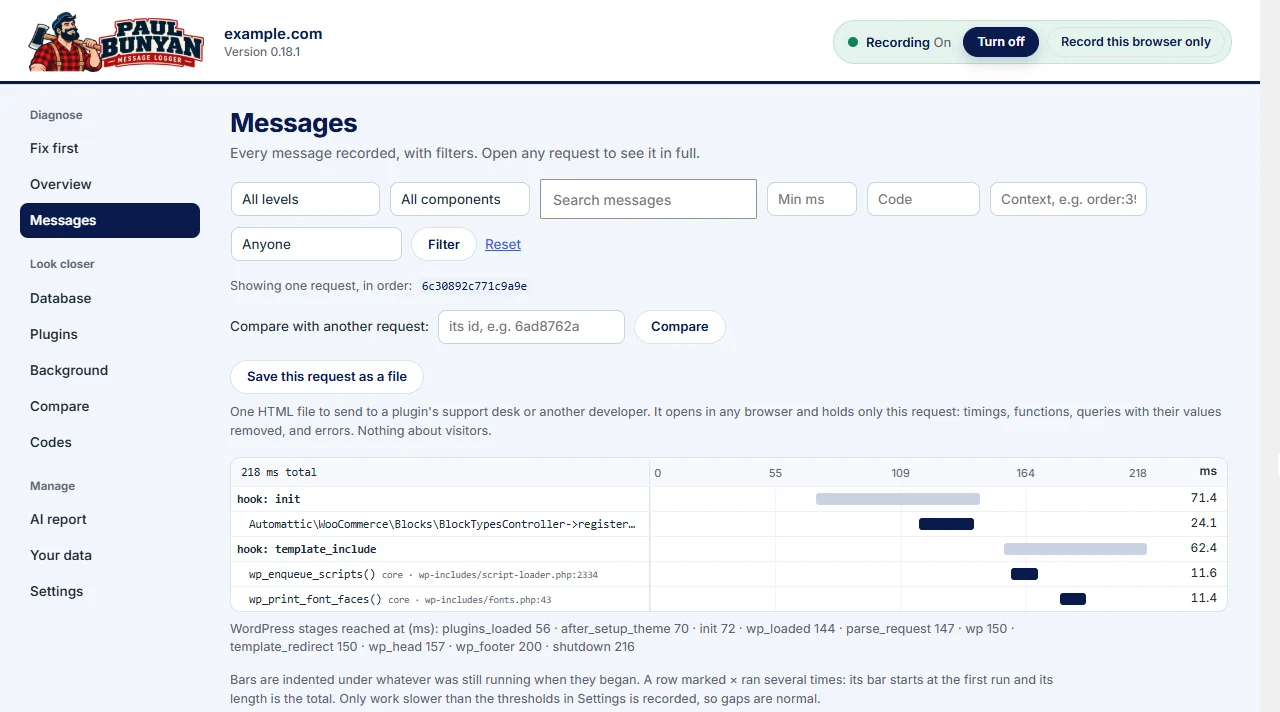
Paul Bunyan keeps the evidence that switching plugins off throws away. Every fatal error and warning is recorded with the request it happened in, the file and line, and the plugin that owns that file (PB-2201, PB-2202). Messages shows what else that request did before it failed: the hooks that ran, the queries, the outside calls. Calls the page made after it loaded, with their status, are recorded too (PB-2803), which catches the "checkout spinner never stops" kind of conflict. For code you maintain, a one-line message at the decision point records why the code took the branch it took. See Logging functions.